> ## Documentation Index
> Fetch the complete documentation index at: https://jigsaw-13.mintlify.app/llms.txt
> Use this file to discover all available pages before exploring further.

# Google Sheets

> Power up your Google Sheets with JigsawStack

You can easily bring JigsawStack directly in your Google Sheets. Analyze your data with real-time,
AI-powered tools without writing a single line of code.

<Note>
  <p>
    Check out our [Google Sheets Demo](https://docs.google.com/spreadsheets/d/1wBrw7AtrU5Yd_8Be2CDgurEbSa40mRCsacxcpMDFtmY/edit?usp=sharing)
    to see how you can use JigsawStack in your Google Sheets.
  </p>
</Note>

## Setting up

1. Install the add on from the [Google Sheets add-on page](https://workspace.google.com/u/0/marketplace/app/jigsawstack/46775261899?flow_type=2)
2. Get your API key from the [JigsawStack dashboard](https://jigsawstack.com/dashboard)
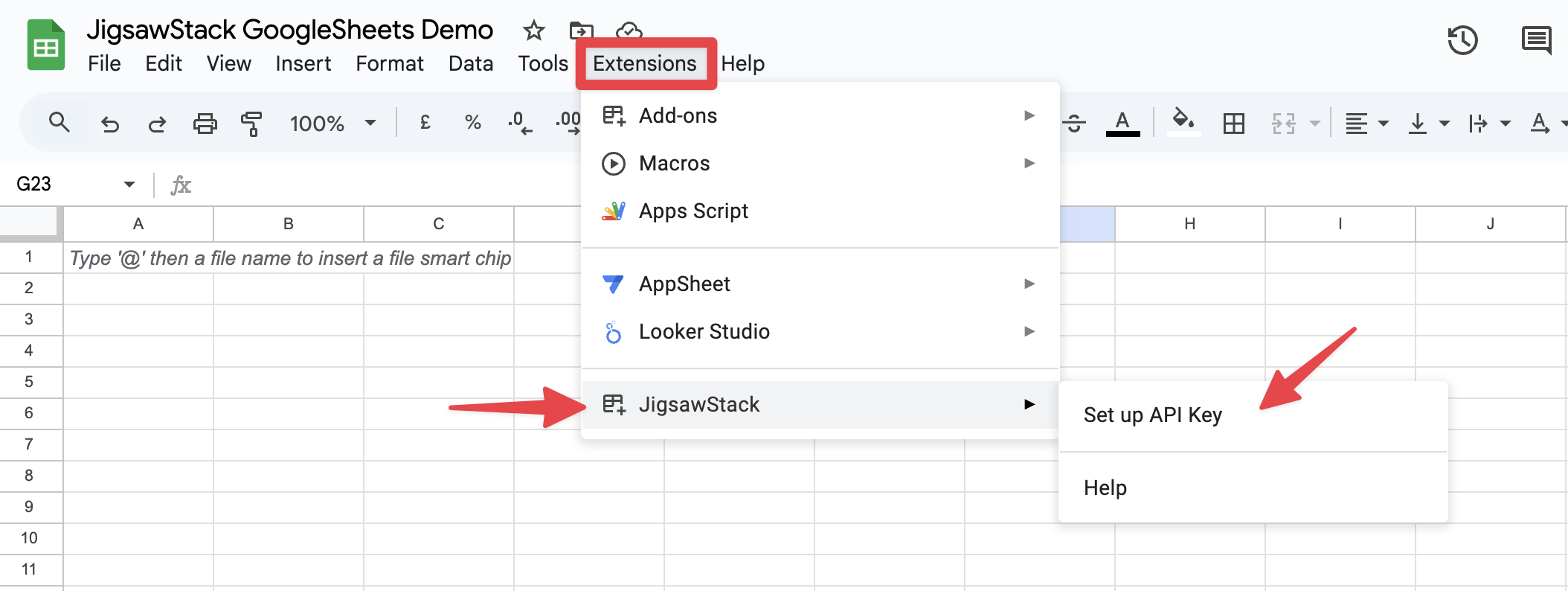
3. In your Google Sheets, go to `Extensions` > `JigsawStack` > `Set up API key`

<img src="https://mintcdn.com/jigsaw-13/5iMDLvyMMJPghNPI/images/GSheets/setupkey.png?fit=max&auto=format&n=5iMDLvyMMJPghNPI&q=85&s=0ba255aeb114bf09057a1b9cac979633" alt="Image showcasing the setup API key on Google Sheets extension tab" width="2108" height="794" data-path="images/GSheets/setupkey.png" />

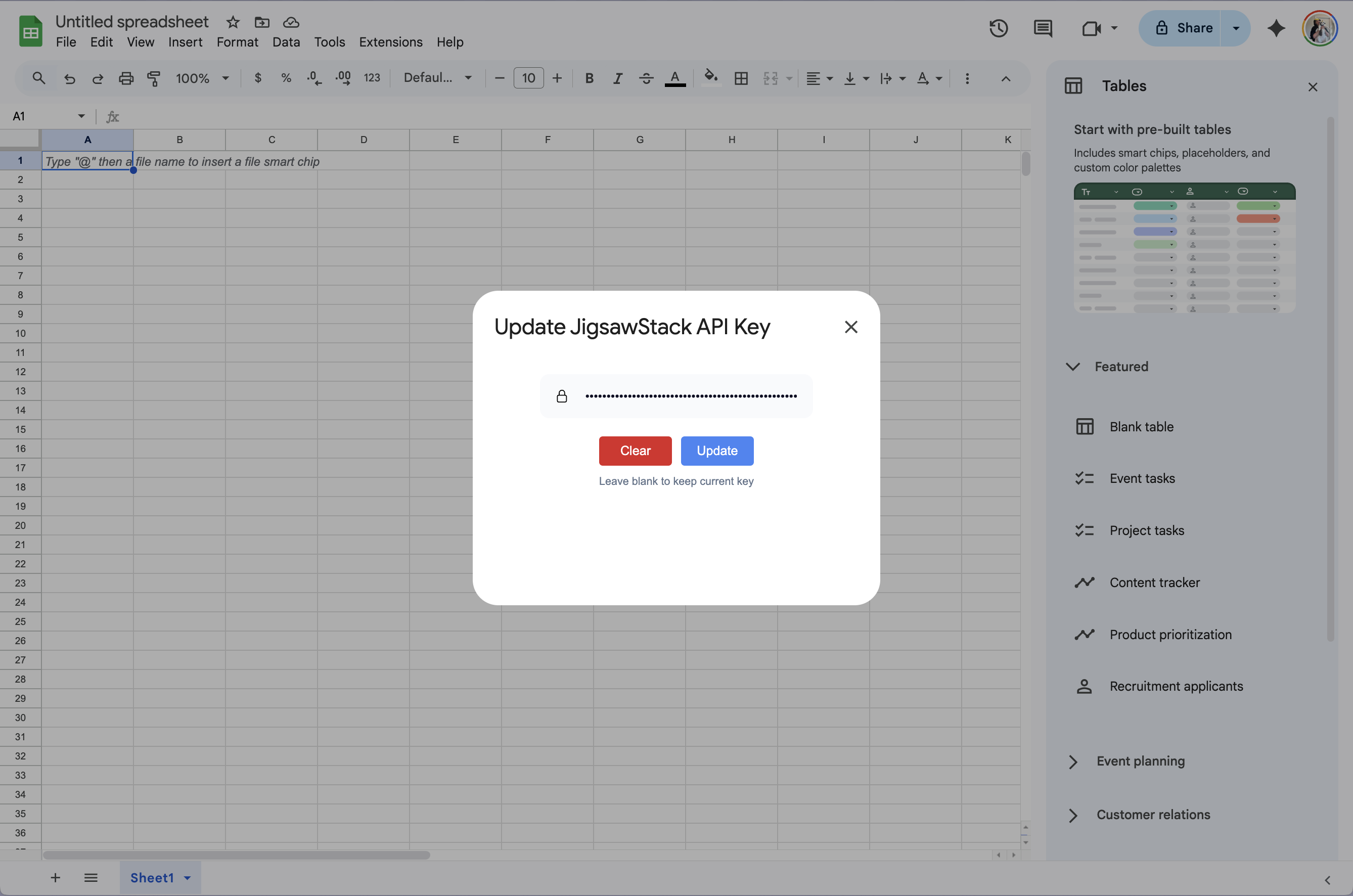
4. Paste your API key in the input field and click `Save`

<img src="https://mintcdn.com/jigsaw-13/E6-ZNeenoryjKMs1/images/GSheets/saveKey.png?fit=max&auto=format&n=E6-ZNeenoryjKMs1&q=85&s=b2d04e70c07e1a509d870a5702d8e1be" alt="Image of saving the API key on Google Sheets" width="2676" height="1772" data-path="images/GSheets/saveKey.png" />

## How to use the add-on

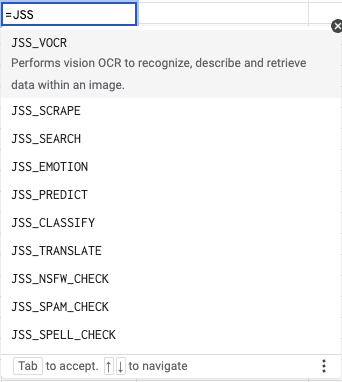
You can call all of JigsawStack’s AI tools just like a regular spreadsheet formula.
Here are a few examples which are shown with autocompletion:

<img src="https://mintcdn.com/jigsaw-13/5iMDLvyMMJPghNPI/images/GSheets/examples.png?fit=max&auto=format&n=5iMDLvyMMJPghNPI&q=85&s=ac9de3a585354b0f8141ffba5e373f45" alt="Examples of JigsawStack functions on Google Sheets" width="342" height="382" data-path="images/GSheets/examples.png" />

## Parameters and Return Types

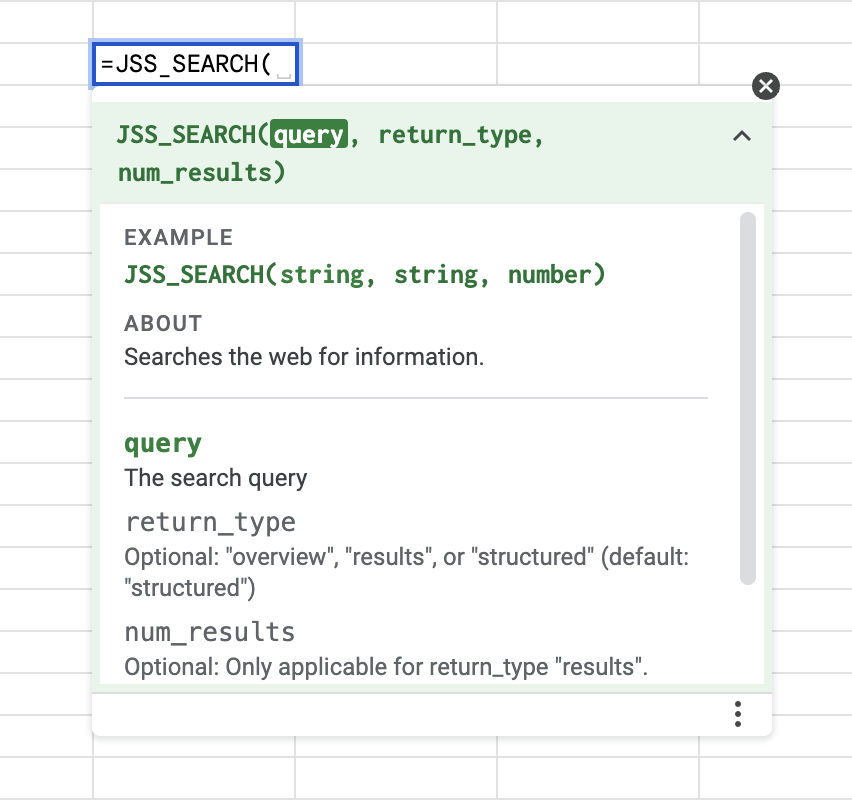
Each JigsawStack function has a set of parameters and a return type. You can find more information on each parameter by clicking
on the dropdown menu in the custom function.

<img src="https://mintcdn.com/jigsaw-13/E6-ZNeenoryjKMs1/images/GSheets/parameters.png?fit=max&auto=format&n=E6-ZNeenoryjKMs1&q=85&s=60a431e1f70ae7ab80a0cab10db41019" alt="Detailed parameters for custom functions" width="852" height="800" data-path="images/GSheets/parameters.png" />

<Warning>
  <p>
    <strong>Warning:</strong> in the case where no description is shown, please click on the question mark icon next to the custom function.
  </p>

  <img src="https://mintcdn.com/jigsaw-13/5iMDLvyMMJPghNPI/images/GSheets/question.png?fit=max&auto=format&n=5iMDLvyMMJPghNPI&q=85&s=4f61ff56e2c8b69e8c45d4f5696e56d7" alt="Question mark icon next to the custom function" width="279" height="85" data-path="images/GSheets/question.png" />
</Warning>

## Error Handling

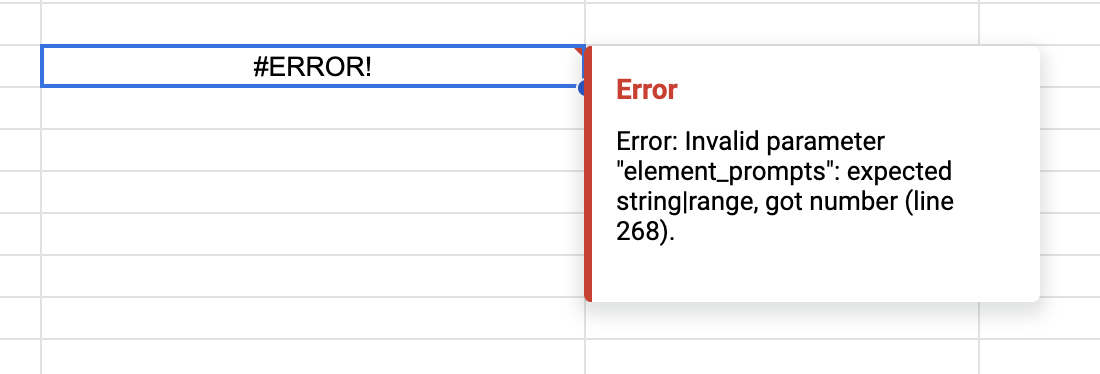
Errors are shown by hovering over the cell with the error. We try out best to provide a clear error message but there
are some limitations from Google Sheets.

Here is an example of an error message with incorrect parameters passed:

<img src="https://mintcdn.com/jigsaw-13/E6-ZNeenoryjKMs1/images/GSheets/errorParameter.png?fit=max&auto=format&n=E6-ZNeenoryjKMs1&q=85&s=743bdfd4db51bd86a3fdad97ae81caed" alt="Error message with incorrect parameters" width="1100" height="374" data-path="images/GSheets/errorParameter.png" />

<Note>
  <p>
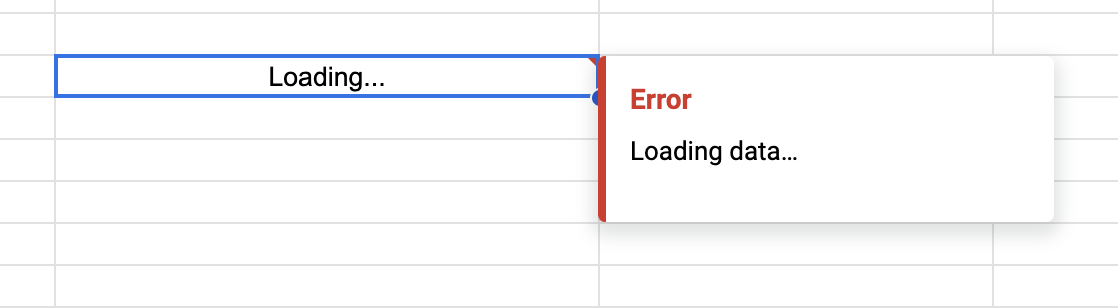
    <strong>Note:</strong> Loading will also show a similar error message. This is unavoidable and is due to the way Google Sheets handles custom functions.
  </p>

  <img src="https://mintcdn.com/jigsaw-13/E6-ZNeenoryjKMs1/images/GSheets/loading.png?fit=max&auto=format&n=E6-ZNeenoryjKMs1&q=85&s=f9dac324ea3a892da9b93aaaeca9115d" alt="Loading error" width="1118" height="308" data-path="images/GSheets/loading.png" />
</Note>

## Cache

### Refreshing a specific cell

By default JigsawStack's results are automatically cached in your sheets. To refresh the value of a specific cell,

* Click on the Cell you want to refresh
* On the keyboard type `cmd + r` (or `ctrl + r` for Windows)

This will trigger a new call to our API, refreshing the value of that cell.

### Refreshing an entire sheet

You can also refresh ALL cell in a sheet by navigating to Extensions > JigsawStack > Refresh All Formulas

<Note>
  <p>
    <strong>Note:</strong> Refresh All Formulas, will clear all your existing cache.
  </p>
</Note>